Login
Login


GPU Not Detected or Code 43? How to Fix Your Graphics Card

Short answer: First make sure your monitor is plugged into the graphics card, not the motherboard. Then check the card's power cables at both ends and reseat it in its slot. If Windows still shows Code 43 or Microsoft Basic Display Adapter, do a clean driver reinstall with DDU. If the error survives that, the card is likely faulty.
"GPU not detected" can mean three different things: no picture from the card, a card missing from Windows or a card Windows can see but has switched off with an error. The fixes overlap, so start at the top and work down.
What exactly is happening?
| What you see | Likely cause |
|---|---|
| Picture works, but games run on the wrong GPU | Monitor plugged into the motherboard (Step 1) |
| Card missing from Device Manager | Card power or a loose card (Steps 2 and 3) |
| No picture at all | Monitor connection, card power or a loose card (Step 1) |
| Card listed in Device Manager with Code 43 | A driver problem or a failing card (Step 4) |
| Only Microsoft Basic Display Adapter listed | No working graphics driver installed (Step 4) |
To check Device Manager, right-click the Start button, choose Device Manager and expand Display adapters. A healthy card shows up by its full name, like NVIDIA GeForce RTX 5070.
Step 1: Check where your monitor is plugged in
This is the most common cause of all. On a PC with a graphics card, the monitor has to plug into the card's ports, usually a horizontal row lower down on the back of the PC. Any video ports up beside the USB ports belong to the motherboard.
If your CPU has built-in graphics, the motherboard ports may give you a picture, which makes it look like everything works. You're just not using your graphics card. On many boards those ports switch off once a graphics card is installed. If your CPU has no built-in graphics, they give you nothing at all.
While you're there, rule out the monitor itself: try a different cable, a different monitor or a TV. Also check the monitor is set to the right input.
No picture? Check the debug LEDs on your motherboard. A lit CPU or DRAM light points to the processor or RAM. A lit VGA light points to the graphics card, its power or the monitor connection. Our guide to motherboard debug LEDs explains what each light means.
Step 2: Check the power cables
Most graphics cards need their own power cables from the power supply, on top of what the slot provides. A cable that's half seated can leave you with no picture or poor performance.
- Shut down and switch the power supply off at the back (the O position).
- Unplug each power cable from the card by squeezing its locking tab, then push it back in until it clicks.
- If your power supply is modular, check the other end of the same cables at the PSU too.
Only use cables that came with your power supply. Modular cables from other units can look identical and still be wired differently, as our guide to PSU cable compatibility explains.
Step 3: Reseat the graphics card
A card that's slightly out of its slot can cause no display, crashes, artifacts or low FPS. Reseating it takes ten minutes.
Leave the PC plugged into the wall with the power supply switched off, so it stays grounded. Don't stand on carpet or linoleum tile, which both build up static. Touch the metal case now and then to discharge static.
- Unplug the card's power cables.
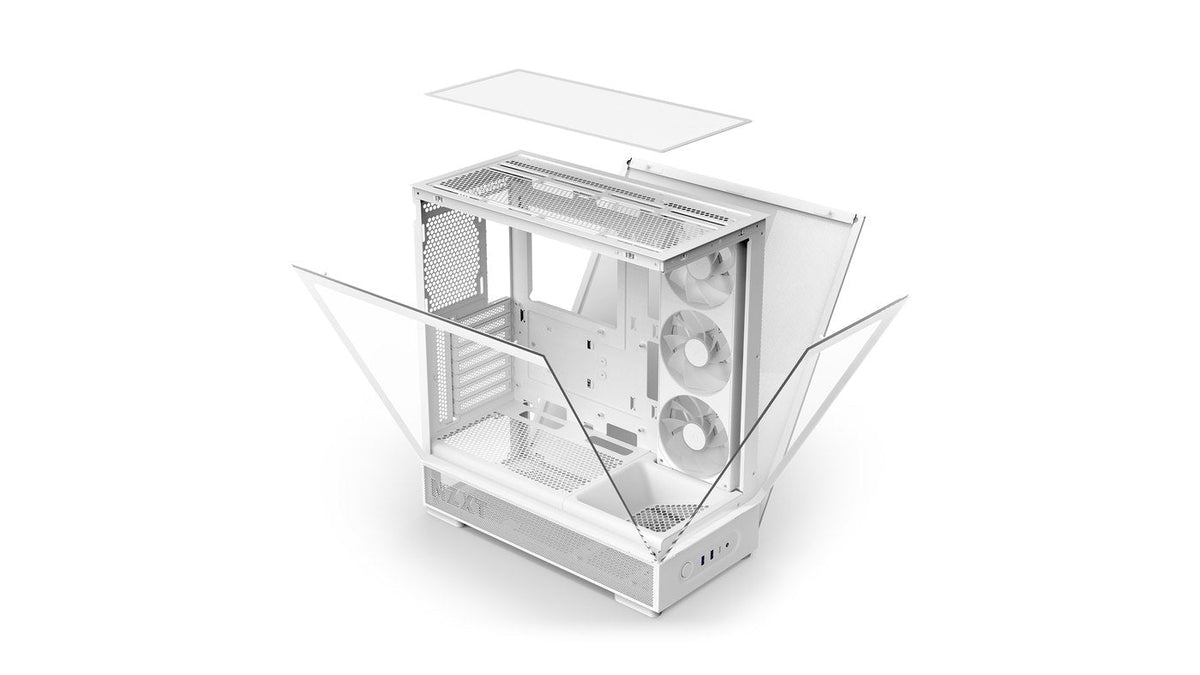
- Remove the one to three screws holding the card to the case. Some cases, like the NZXT H5 Flow, have a cover plate over them.
- Release the latch at the end of the PCIe slot. If it won't move, press the card down into the slot first, then try again.
- Lift the card out and look at the gold edge connector and the slot for debris or damage. A few shorter pins on the connector are normal. Torn or bent ones aren't.
- With the slot's latch open, line the card up and press evenly along its top edge until the latch clicks shut.
- Screw the card back in and reconnect its power cables.
Our guide to installing a graphics card has photos of each stage.
Step 4: Fix Code 43 with a clean driver install
Code 43 means Windows has switched the card off because it reported a problem. That can be a damaged driver install or failing hardware. A clean reinstall tells you which.
A normal reinstall can leave old driver files behind. Those leftovers can be the cause. So use Display Driver Uninstaller (DDU) in Safe Mode to strip out the old driver completely, then install the latest one from NVIDIA, AMD or Intel. Our guide to clean installing GPU drivers with DDU walks through every step.
Once the new driver is in and the error is gone, run a demanding game for a while to make sure it holds. If Code 43 comes straight back on a clean driver, the card is likely damaged or defective.
Frequently asked questions
My graphics card fans spin but there's no display. Is it dead?
Not necessarily. Spinning fans only prove the card is getting some power. Check your monitor is plugged into the card, both ends of its power cables are seated and the card is fully in its slot. Many cards also stop their fans when cool, so still fans don't mean a dead card either.
Why does Device Manager show Microsoft Basic Display Adapter?
That's the fallback driver Windows uses when no proper graphics driver is installed. Your resolution may be stuck low and only one monitor will work. It's expected straight after running DDU. Any other time, install the latest driver for your card.
Do I need to unplug my PC from the wall to reseat the GPU?
No. Switch the power supply off at its switch and leave the cable plugged into the wall, so the case stays grounded while you work.
Which driver should I install?
For gaming, NVIDIA's Game Ready driver, AMD's latest Adrenalin release marked WHQL Recommended or Intel's latest WHQL Certified Arc driver. Studio and Pro drivers are built for creative and workstation stability and can lag behind the gaming releases.
Could it be something other than the graphics card?
Yes. A RAM or CPU fault can stop a PC giving any picture at all, which looks like a GPU problem. If the debug LEDs point elsewhere or your PC powers on with no display even on the motherboard ports, start there.
Still not detected?
If the card is seated, powered and running a clean driver and still won't show up or keeps throwing Code 43, it's likely faulty. Contact the card's maker about a warranty claim. If it came in an NZXT prebuilt PC, contact NZXT Support instead.