Anmelden
Motherboard Debug LEDs and POST Codes Explained

Short answer: Four LEDs labelled CPU, DRAM, VGA and BOOT light in sequence as the PC starts. Whichever one stays lit is where startup failed, and that tells you which component to look at. On boards with a two-digit display, codes 00-3F mean CPU or motherboard, 40-5F mean memory, 90-9F mean graphics, and FF or A2 mean POST completed successfully.
Debug LEDs are the most underused diagnostic tool on a motherboard. They turn "my PC won't start" from a guessing game into a specific answer in about five seconds, and most people never look at them.
Not every motherboard has them, so check your manual if you cannot find any.
What POST is
POST stands for Power-on Self Test. Every time the PC starts, it tests the installed hardware to confirm everything is detected and working. If POST does not complete, the system never reaches your operating system.
Debug LEDs are simply a readout of how far through that test it got.
Reading POST LEDs
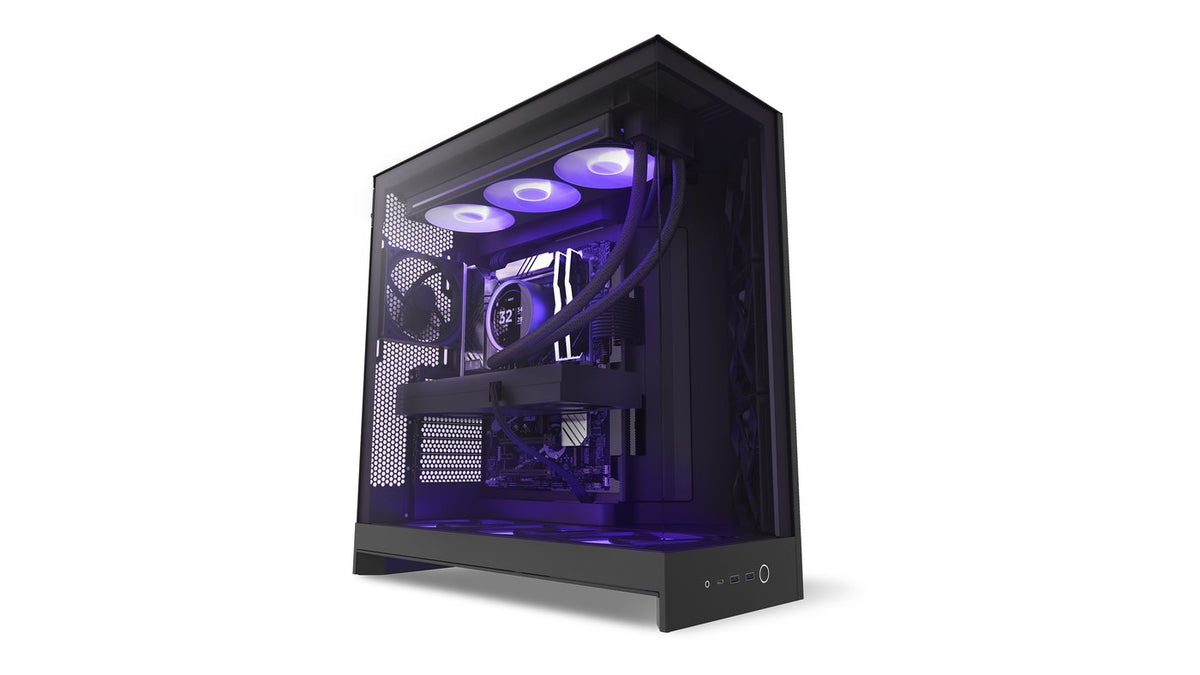
Most boards use four LEDs labelled CPU, DRAM, VGA and BOOT. On NZXT N Series motherboards they sit along the bottom edge near the power and reset buttons. Colour coding and arrangement vary, so check your manual.
On a healthy start they light and go out in sequence: CPU, then DRAM, then VGA, then BOOT, then all dark.
When POST fails, one of three things happens:
- One or more LEDs stay lit indefinitely until you power down
- The LEDs bounce between two of them indefinitely
- The sequence stops after an LED goes out and never continues
In all three cases, the last or furthest LED in the sequence is your culprit.
What each LED means
CPU
First in sequence. Stuck here means a problem with the processor:
- A loose or disconnected 12V CPU power cable
- The CPU is not properly installed
- The CPU is not compatible with the motherboard, often a BIOS version issue
- The CPU is faulty
Start with the power cable, since it is the most common and the easiest to check. Our CPU and socket guide covers the rest.
DRAM
Second in sequence. Stuck here means memory:
- No RAM installed or detected
- One or more modules loose
- One or more modules not compatible
- One or more modules faulty
- The memory controller on the CPU has failed, which means replacing the CPU
Reseating is free and fixes this surprisingly often. Our RAM diagnosis guide covers isolating a bad module.
VGA
Third in sequence. Covers the graphics card, or integrated graphics on systems without one:
- No monitor detected, either disconnected or on the wrong input
- No GPU detected
- The GPU has reported a hardware error and hung
- The GPU is not getting enough power
Note the first one: a VGA LED can simply mean your monitor is on the wrong input. Check that before opening the case. Our guide to no display covers the display path.
BOOT
Last in sequence. It means all the hardware passed and the system is trying to load the UEFI or your operating system. Hanging here is fairly uncommon and points at:
- No storage detected
- No valid operating system found
- Invalid boot settings
If you recently cleared the CMOS, invalid boot settings is the likely cause, since boot order resets along with everything else.
Reading a two-digit POST display
Some boards have a two-digit seven-segment display, sometimes called a Q-Code or Dr. Debug, either instead of or alongside the LEDs. It gives considerably more detail, which is why enthusiast builders prefer it.
As with the LEDs, a code that hangs is pointing at the source. Your motherboard manual has the full list, but the broad ranges are consistent:
| Code range | Stage | Points at |
|---|---|---|
| 00 - 3F | Pre-boot and CPU initialisation | Motherboard or CPU |
| 40 - 5F | Memory detection and initialisation | RAM |
| 90 - 9F | Display detection and initialisation | GPU |
| FF, A2, A0 | POST complete | Nothing - this is success |
Once POST completes, the display may switch off or change to temperature mode, showing the CPU temperature instead. If your display is showing a number in the 30s or 40s while Windows is running, that is a temperature, not an error code.
Other debug hardware
Older systems sometimes have a small speaker or buzzer that beeps a pattern at startup. Some enthusiast boards use an OLED display that spells out the error in words. Both work on the same principle: the last thing reported before it stopped is the thing to investigate.
Frequently asked questions
All four LEDs flash and then go out. Is that a problem?
No, that is a normal successful POST. They light and clear in sequence as each stage passes.
My board has no debug LEDs. How else can I tell?
Check your manual, since some boards use a beep code speaker instead. Failing that, work through the reseating order in our PC will not turn on guide, which is the same sequence the LEDs would point you through.
The VGA LED is lit but my graphics card works fine in another PC.
Check the monitor connection and input first, since a VGA LED can simply mean no display was detected. Then reseat the card and its power cables.
My display shows a number after Windows loads.
That is temperature mode, not an error. Many boards switch the POST display to CPU temperature once POST completes.
What does a bouncing pattern between two LEDs mean?
The board is retrying a stage and failing. Treat it the same as a stuck LED and investigate the furthest component in the sequence.
Can debug LEDs be wrong?
They report where POST stopped, which is not always where the root cause is. A DRAM LED can result from a CPU memory controller fault, and a VGA LED can be a disconnected monitor. Use them to narrow the search, not to close it.
Need a hand?
Tell us which LED is lit or which code is showing, along with your motherboard model, and our team can point you straight at it. Reach them at NZXT Support.