Login
Login
PC Turns On But No Display: How to Fix It

Short answer: Check four things in this order. Is the monitor powered on, is the cable running from the monitor to the graphics card rather than the motherboard, is the monitor set to the matching input in its on-screen menu, and is the cable itself good. The single most common cause on a PC with a dedicated graphics card is a display cable plugged into the motherboard's video output instead of the card.
A black screen on a PC that is clearly running is frustrating precisely because it looks like a serious hardware fault. Most of the time it is not. Work through these in order and rule out the cheap causes before you start taking the machine apart.
Step 1: Is the monitor actually on?
Confirm the monitor has power and is switched on. Almost every monitor has an LED that lights when it is powered.
- Check the power connection at both the monitor and the wall.
- Cycle the monitor's power and watch for the LED, or for an on-screen message such as "no signal". Either one tells you the monitor is alive.
- If there is no LED and no on-screen display, try a different outlet.
A monitor showing "no signal" is good news. It means the monitor works and the problem is between the PC and the cable.
Step 2: Is the cable plugged into the graphics card?
This is the big one. If your PC has a dedicated graphics card, the display must be connected to the card, not to the motherboard's rear video ports.
The graphics card's outputs sit lower on the back of the case, in the expansion slot area, separate from the block of motherboard ports that includes USB and audio. A typical card offers some combination of DisplayPort, HDMI and occasionally USB Type-C.
If you find the cable in the motherboard's output, move it to the card and you are probably done.
Which connection should you use?
Both NVIDIA and AMD recommend DisplayPort, particularly for monitors with higher refresh rates. If you have the option and a DisplayPort cable, use it.
Do not force a connector. If a plug is hard to insert, stop and check you have the right connector and the right orientation. Forcing one can permanently damage the port on the graphics card or the monitor.
Make sure the cable is fully seated at both ends. A partially inserted DisplayPort cable can look connected and carry nothing.
Step 3: Is the monitor on the right input?
Monitors with more than one input need to be told which one to display, using the on-screen display menu (usually a small joystick or set of buttons on the monitor itself).
- Set it to auto detect if that option exists, or select the input type that matches your cable.
- If you connected over DisplayPort but the monitor is set to HDMI, you get a black screen even though everything is working.
- Where a monitor has several ports of the same type, they will be labelled HDMI-1, HDMI-2 and so on. Select the exact one you plugged into.
If you are not sure how to reach the input menu on your monitor, its user guide will have it.
Step 4: Test the cable, the port and the monitor
If the first three steps have not fixed it, start substituting one thing at a time:
- Try a different cable. Display cables fail more often than people expect, and a failing one can work intermittently or only at lower refresh rates.
- Try a different port on the graphics card. Most cards have several. An individual output can fail while the rest of the card is fine.
- Try a different connection type. If you were on HDMI, switch to DisplayPort, or the other way round.
- Try a different monitor, if you have one available.
- Try your monitor on a different PC, or on a games console or laptop. This settles conclusively whether the monitor is the problem.
If the screen is still black
Once you have confirmed the monitor works and the cable and port are good, the problem is inside the PC. That usually means the system is not completing POST, in which case there is nothing to display yet.
The most common internal causes are a graphics card that has worked loose in its slot, a GPU power cable that is not fully seated at the card or at the power supply, or a RAM problem preventing the system from starting at all. Our guide to a PC that will not turn on covers the reseating order in full. If you have just swapped graphics cards, check each step in how to install a graphics card.
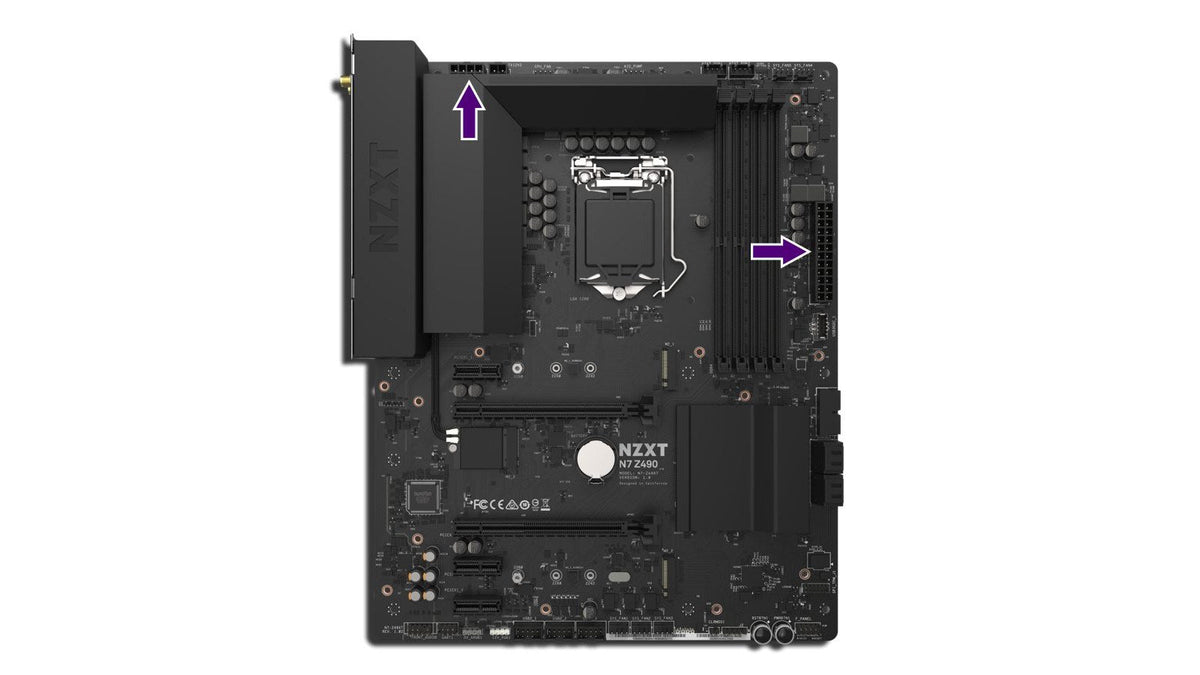
Motherboard debug LEDs are worth a look before anything else. If the VGA LED is lit, the board is telling you it cannot find the graphics card. Our guide to fixing a GPU that isn't detected covers that case. If the DRAM LED is lit, it is a memory problem rather than a display one.
Frequently asked questions
My PC posts and boots to Windows but the screen stays black. What is different?
If you can hear Windows start, or the machine responds to input, the system is running and the fault is in the display path. Work through the cable, port and monitor input steps. A corrupted or wrong graphics driver can also cause this, in which case booting into Safe Mode and reinstalling the driver is the fix.
Should I plug into the motherboard or the graphics card?
The graphics card, every time, if you have one. The motherboard's video output is driven by the CPU's integrated graphics and on many builds it is disabled or unused.
Why does my monitor say "no signal" when the PC is clearly on?
The monitor is healthy and is not receiving video. Check the cable is in the graphics card, that the monitor input matches the cable, and that the cable is fully seated. If all three are correct, the PC is likely not completing POST.
Does the cable matter for high refresh rate monitors?
Yes. Bandwidth requirements rise with resolution and refresh rate, and an older or lower-specification cable may work at 60Hz and fail at 144Hz. DisplayPort is the recommended connection for high refresh rate displays.
Can a faulty display cable damage anything?
A faulty cable will not usually cause damage, but forcing a connector into the wrong port can. If it does not go in easily, stop and check.
I see the motherboard splash screen but Windows never appears.
That is a different problem. The display path is working. You are looking at a boot or storage issue rather than a graphics one.
Still black?
If you have confirmed the monitor and cable are good and the screen is still blank, get in touch. Our team is at NZXT Support.