Logga in
Artikel: How to Clear CMOS: Three Methods That Work
How to Clear CMOS: Three Methods That Work

Short answer: Shut the PC down, unplug it from the wall, then hold the power button for about 30 seconds to drain residual power. Then use one of three methods: press and hold the Clear CMOS button for 30 seconds, bridge the CMOS jumper pins with a screwdriver for 30 seconds, or remove the CR2032 battery from the motherboard. Removing the battery is the most reliable.
Clearing the CMOS resets your motherboard's stored settings back to defaults. It is one of the first things worth trying when a PC will not start after a BIOS change, a hardware swap, or a failed overclock. It is also completely reversible and costs nothing, which is why it sits so early in most troubleshooting flows.
What CMOS actually is
CMOS stands for Complementary Metal-Oxide-Semiconductor. In this context it refers to a small, battery-powered memory chip on your motherboard, usually paired with a real-time clock, that stores the foundational settings your system needs in order to start.
The important characteristic is that it is volatile memory. Cut its power for long enough and it erases itself back to a clean slate. That is the entire mechanism behind every method below: you are not pressing a magic reset, you are depriving a chip of power.
Before you start: drain the power
Do this first, whichever method you use. Skipping it is the most common reason a CMOS clear does not take.
- Shut the PC down fully.
- Unplug the AC power cable connecting the power supply to the wall or surge protector.
- Press and hold the power button for about 30 seconds. Nothing will happen visibly. You are discharging residual power held in the system.
Method 1: the Clear CMOS button
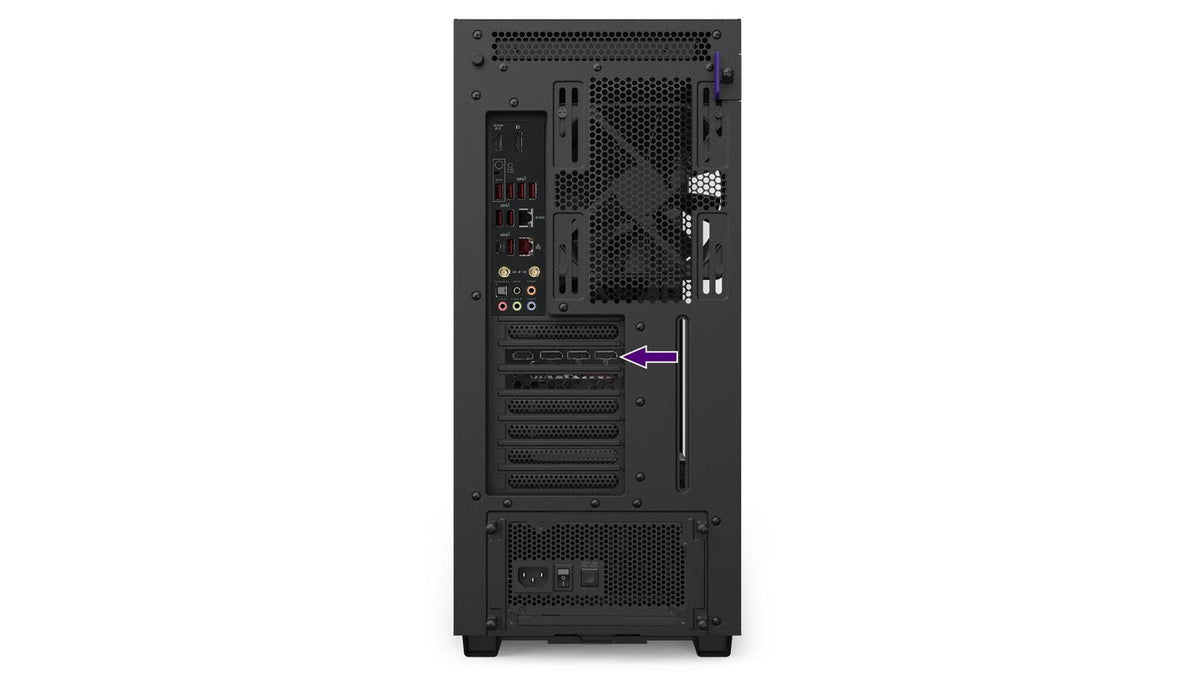
Some motherboards include a dedicated button for this, labelled something like CLR_CMOS. It is usually on the rear I/O panel or on the board itself.
With the power drained, press and hold that button for about 30 seconds. Release it, reconnect the PC to power and start the system.
This is the easiest method and it is also the least reliable of the three. If the system behaves the same afterwards, try one of the methods below before concluding that CMOS was not the problem.
Method 2: the CMOS jumper pins
This is the oldest and most widely available method. Nearly every motherboard has a pair of jumper pins for it, though the label varies:
- RESET_BIOS
- CLR_CMOS
- CLEAR_CMOS
- CLR_BIOS
- JBAT1
Find the exact location in your motherboard manual, because the position moves between boards and guessing is a bad idea.
With the power drained, bridge the two pins with a conductive object. Some boards ship a plastic jumper cap on a 3-pin header for this purpose. If yours does not, the tip of a metal screwdriver or a house key works fine.
Hold the bridge across both pins for about 30 seconds, then release, reconnect power and start the system.
Method 3: remove the CMOS battery
This is the most effective method, because you are removing the power source entirely rather than shorting a circuit.
The battery is almost always a CR2032 button cell sitting somewhere on the motherboard. Your motherboard manual will give the exact location.
- With the system powered off and unplugged, locate the battery.
- Most are held by a small spring latch. Compress the latch from inside the socket, towards the squared cut-out.
- The battery will lift on one side or pop out entirely. If it is stubborn, the tip of a screwdriver or a pen gives you better access to the spring.
- Leave it out for a minute, then refit it the same way up.
If you have an ITX motherboard, the battery may be a different type connected by a wire rather than a socketed cell. Check your manual before pulling on anything.
What to do after clearing the CMOS
When you start the PC you will most likely see a message telling you the system settings have changed. That is expected. It is the motherboard telling you it has come up on defaults.
Go into the UEFI/BIOS and check your settings before you carry on using the machine:
- Loading Optimized Default Settings is enough for most people.
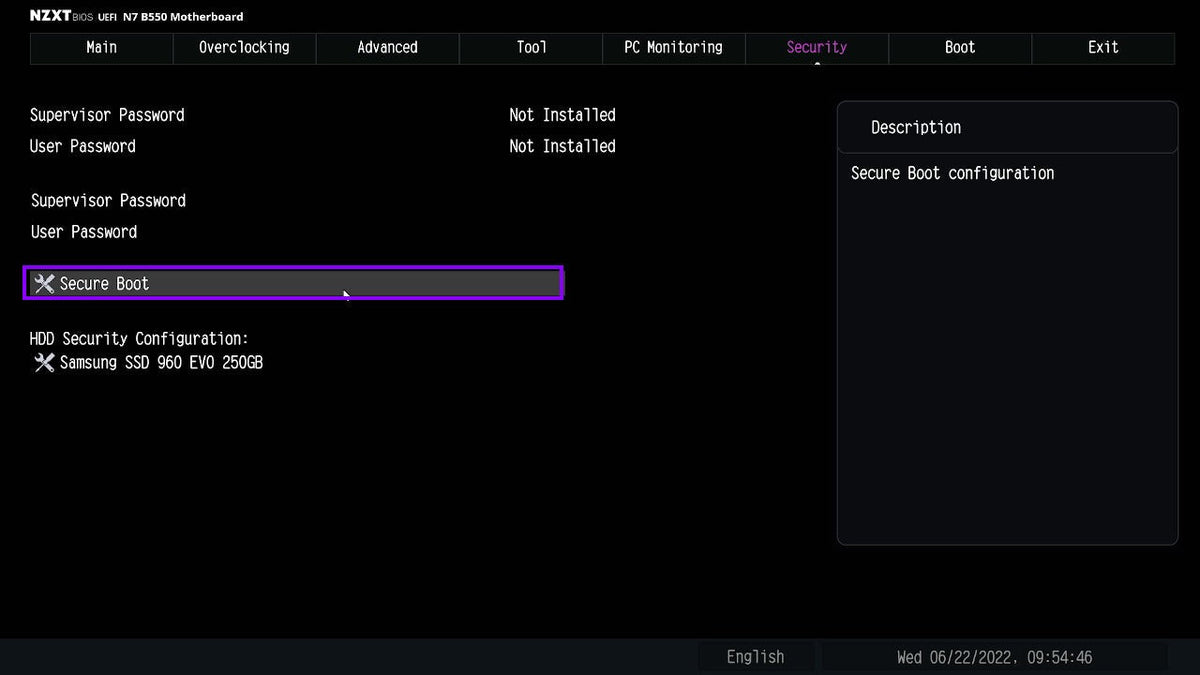
- Depending on your system, you may need to reconfigure specific settings such as Secure Boot, which some games and anti-cheat systems require.
- If you had XMP or EXPO enabled for your memory, it will now be off. Our guide to enabling XMP and EXPO covers turning it back on.
- Your system clock will likely need setting.
Do I need to replace the CMOS battery?
Usually not. The CMOS chip draws a tiny amount of power to hold its settings, so a single battery commonly lasts well over five years without any trouble.
The symptom that points at a dead battery is your PC failing to retain CMOS settings between restarts. If your clock resets, or your BIOS settings revert every time you power down, the battery is likely worn out and a fresh CR2032 will fix it.
Frequently asked questions
Will clearing the CMOS delete my files?
No. CMOS holds motherboard settings only. Your drives, your operating system and your files are untouched.
How long do I need to leave the CMOS battery out?
A minute is plenty once you have drained residual power by holding the power button with the PC unplugged. Draining first matters more than how long the battery stays out.
Do I have to unplug the PC to clear the CMOS?
Yes. Every method assumes no power is reaching the board. Clearing CMOS on a system still connected to mains power will often do nothing at all.
Will this fix a PC that will not POST?
Sometimes, particularly if the problem started after a BIOS change, a memory overclock or a hardware swap. It is not a cure-all. Reseating RAM and the graphics card should come first, which our guide to a PC that will not turn on walks through.
Does clearing the CMOS remove a BIOS password?
On most consumer motherboards, yes, since the password is stored in CMOS.
Is it safe to bridge the pins with a screwdriver?
Yes, provided the system is unplugged and residual power has been drained first. Touch only the two jumper pins and nothing else on the board.
Still not starting?
If a CMOS clear has not resolved it, our team can help you work out what is next. Reach them at NZXT Support.