登入
登入
Front I/O Not Working: USB, Audio and Power Button Fixes

Short answer: Work out which part is failing. For a "USB Over Current Status Detected" message, drain power, clear CMOS and disconnect every USB device including the internal ones, then reconnect them one at a time. For a dead USB port, test the same device on the rear I/O. For a headset where only the mic or only the audio works, the headset is probably OMTP rather than CTIA. For a power button that will not start the PC, bridge the POWER_SW pins with a screwdriver.
Front I/O covers several separate things that happen to live behind one panel: USB ports, the headset jack, and the power button. They fail in different ways and the diagnosis is different for each, so start by identifying which one you actually have.
"USB Device Over Current Status Detected"
This message appears during boot and is usually followed by the PC shutting down. It means the motherboard has detected more current being drawn on a USB port than it should be, which points to either a faulty connected device or a short inside a port.
It is not exclusive to the front panel, but front ports see it more often simply because they get plugged and unplugged constantly.
How to isolate it
- Unplug the PC from AC power.
- Press and hold the power button for 30 seconds to drain residual power.
- Clear the CMOS.
- Disconnect every external USB device.
- Disconnect internal USB devices from the USB 2.0 headers inside the case. This means your Kraken AIO cooler, RGB controller and anything similar. People consistently forget these because they are not visible from outside.
- Disconnect the USB 3.1 Gen 1 and USB 3.2 Gen 2x2 front-panel connectors where they meet the motherboard.
- Reconnect AC power and start the PC.
If the error is still there with everything disconnected, the fault is a physical port on the motherboard itself, which means the motherboard needs replacing.
If the error is gone, shut down and reconnect in this order, testing after each step: keyboard and mouse first, then internal USB 2.0 devices, then other rear USB devices, and the two front-panel connectors last. Whichever step brings the error back is your culprit. If it is the front-panel connectors, the front I/O module needs replacing.
A front USB port that is slow, drops out, or does not detect
Before assuming the port is dead, plug the same device into the motherboard's rear I/O.
- Problem follows the device to the rear ports: the device itself is likely faulty, or there is an issue with the USB controller.
- Problem disappears on the rear ports: the front I/O module is the likely fault and may need replacing.
This one test saves a lot of guessing, so do it before anything else.
Headset works, but only the audio or only the mic
This is almost never a fault. It is a standards mismatch.
Every NZXT case that has a headset jack, going back to the H210, H510 and H710, uses a 4-pole CTIA jack, which carries headphone output and microphone input on a single connector. CTIA is the common standard. One case in the current range has no headset jack at all: the H3 Flow front I/O is one USB Type-A and one USB Type-C, so use your motherboard's rear audio jacks there.
Some headsets use the older OMTP standard instead, which swaps the ground and microphone poles. Plug an OMTP headset into a CTIA jack and you typically get audio but no working microphone, or the reverse.
Check your headset's manual to see which standard it uses. CTIA to OMTP adapters exist, or you can use a splitter into separate rear-panel jacks if your motherboard has them.
Power button does nothing, or starts the PC inconsistently
You can test the button itself directly, which tells you whether the problem is the button or something further in.
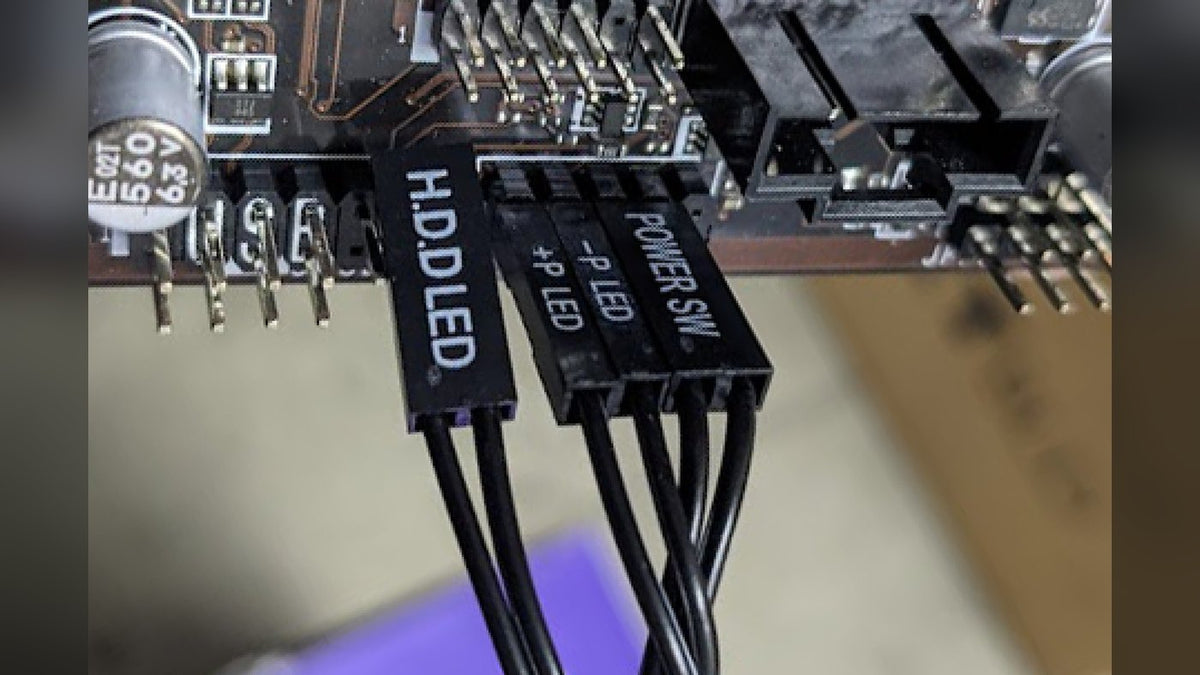
- Disconnect the F_PANEL connector from the motherboard.
- Briefly bridge the POWER_SW pins with something conductive, such as the tip of a metal screwdriver. This simulates a button press.
- The PC starts reliably every time you bridge the pins: the button on the front I/O is the fault, and the module may need replacing.
- Starting is still inconsistent: the problem is the motherboard or the power supply rather than the button. Our guide to a PC that will not turn on covers where to go next.
Replacing a front I/O module
On many NZXT cases the front or top I/O module is a replaceable part rather than something that writes off the case. NZXT support publishes step-by-step replacement guides for the H6 Flow, H9 Flow, H7 Flow and H5 Flow, plus the top I/O module on the H3 Flow and the H210. If your case is in warranty, contact support before buying anything.
Frequently asked questions
Can a faulty front USB port stop my PC from booting?
Yes. An over-current condition on a USB port can halt the boot and shut the system down before it reaches Windows, which is exactly what the over-current message is telling you.
Do I really need to disconnect the internal USB devices too?
Yes. Your AIO cooler and RGB controller connect to internal USB 2.0 headers and count as USB devices. Leaving them plugged in is the most common reason this troubleshooting comes back inconclusive.
Why does my headset mic not work in the front jack?
The jack is 4-pole CTIA. If your headset is OMTP, the ground and microphone poles are swapped and the microphone will not work correctly. Check the headset manual. If your case is an H3 Flow, there is no front headset jack to use, so connect to the motherboard's rear audio jacks instead.
Is bridging the POWER_SW pins with a screwdriver safe?
Yes, when done briefly and carefully. Touch only those two pins. This is the standard way to test a front-panel power button and it is what a repair shop would do.
My front USB-C port does not work but USB-A does.
They use separate connectors to the motherboard. Check that the front-panel USB-C cable is seated at its own header, and confirm your motherboard actually has that header, since not all do.
Does a front I/O fault void my warranty?
No. If the module is faulty and the product is in warranty, contact support and the team will sort out a replacement.
Still stuck?
Tell us your case model and which of the four symptoms above matches. Our team is at NZXT Support.