登录
登录
文章: How to Clean Dust Out of Your PC Safely
How to Clean Dust Out of Your PC Safely

Short answer: Shut down and switch off the power supply, then pull out and clean the dust filters first. Inside, use short bursts of compressed air on the fans, the radiator, the graphics card and the power supply's grille, holding each fan still so it can't overspin. Brush stubborn dust off radiator fins. Repeat every few months.
Dust is the slow way to lose performance. It builds up on filters, fans and radiator fins until air can't get through. Then your PC runs hotter and louder for no obvious reason. Cleaning it out takes about 20 minutes.
Signs your PC needs a clean
- Fans are louder than they used to be, doing the same things
- Temperatures have crept up over a few months
- You can see a gray layer on the filters, fan blades or radiator
- Games stutter after a while, because a hot CPU or GPU slows itself down to cool off
Dust blocking a cooler's radiator is one of the main reasons a PC overheats. If yours is running hot, our guide to checking if your PC is overheating shows what's normal.
What you need
- A can of compressed air or an electric air duster
- A soft brush, like a clean paintbrush or a soft toothbrush
- A Phillips screwdriver, if your side panels use screws
Step 1: Power down
Shut down from Windows and switch the power supply off at the back (the O position). Unplug the power cord, then touch the metal case to discharge any static before you reach inside. Then take off the side panels.
Step 2: Clean the dust filters
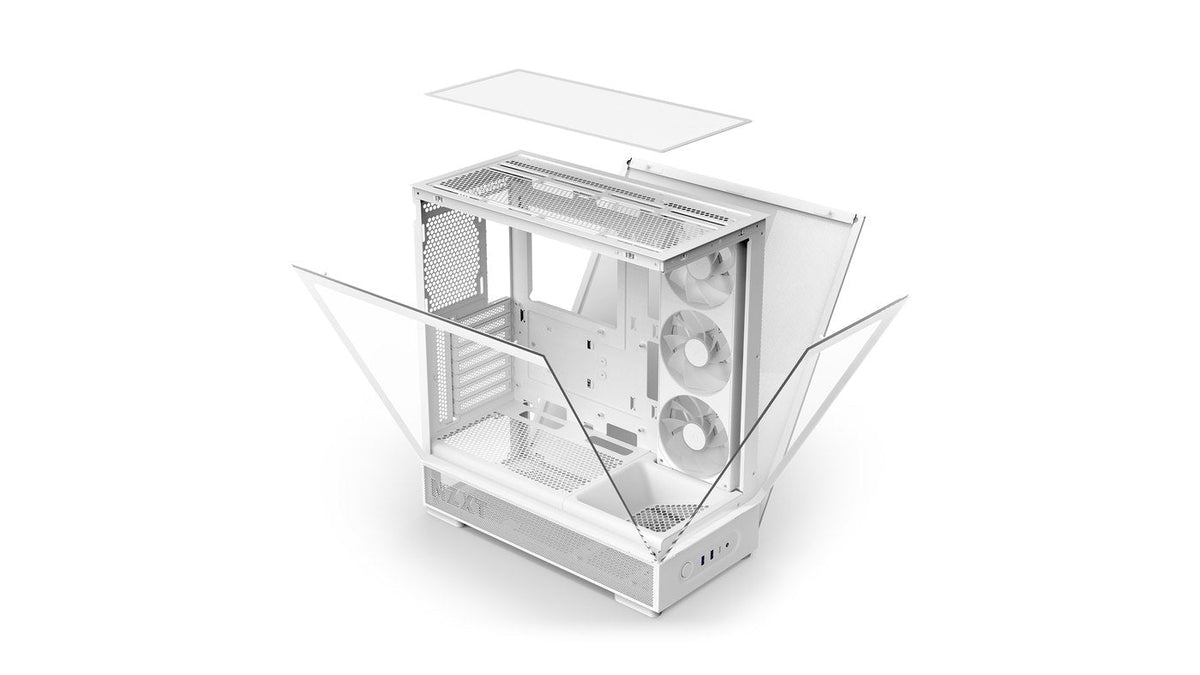
Filters catch most of the dust before it gets in, so they need cleaning the most. Most NZXT cases have at least one you can take out:
| Case | Removable filters | Built-in mesh |
|---|---|---|
| H9 Flow series | One slide-out filter at the bottom | Fine mesh in the side and top panels |
| H3 Flow | One magnetic filter on top | Fine mesh in the removable front panel |
| S5 RGB (2026) | Mesh filters at the top and bottom | Mesh on the right side panel |
Not sure where yours are? Your case manual shows every filter. Brush the dust off removable filters or blow it out with compressed air. Most mesh filters can also be rinsed under the tap. Let them dry completely before they go back in. Built-in mesh panels can be brushed or blown clean in place.
Step 3: Clean the fans
Hold each fan's blades still with a finger before you blow air at it. Compressed air can spin a fan far faster than it's built to run, which can damage its bearings.
- Use short bursts, not one long blast.
- Keep the can upright. Tilted, it can spray freezing liquid propellant.
- Wipe or brush any dust that's stuck to the blades.
Step 4: Clean the radiator or CPU heatsink
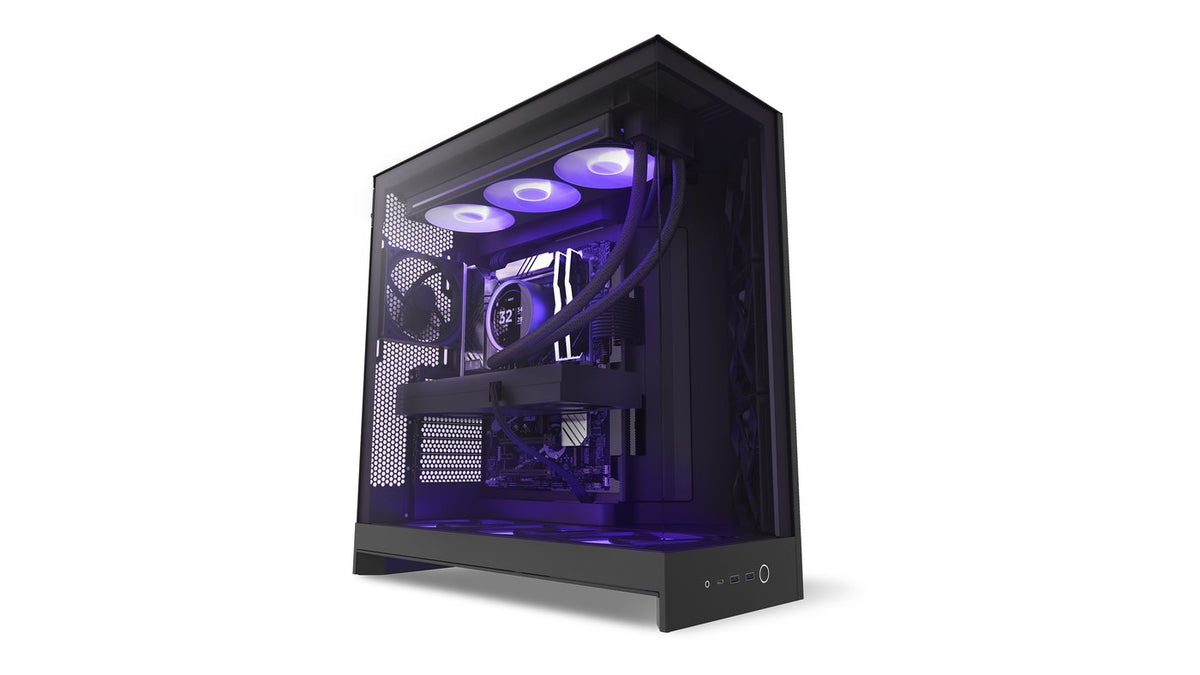
Radiator fins trap dust between them. That's where it does the most damage to temperatures. Blow compressed air through the fins, then use a soft brush to lift what's left. Working from the side the air normally exits pushes dust back the way it came in.
Go gently. Radiator fins are thin metal and bend easily, so don't use anything harder than a soft brush.
Step 5: Clean the graphics card and power supply
Hold the graphics card's fans still and blow short bursts through its heatsink. Then blow dust out of the power supply's fan grille from the outside, usually at the bottom or back of the case.
Never open the power supply. It holds a charge even when unplugged. There's nothing inside you need to clean anyway.
Step 6: Put it back together
Refit the filters, then the side panels. Switch the power supply back on and start up. Open your monitoring software or BIOS and compare temperatures with what you saw before. If dust was the problem, you'll see the difference straight away.
Frequently asked questions
How often should I clean my PC?
Check the filters every month or two and give the inside a full clean every few months. If you have pets, carpet or a dusty room, clean more often. The dust you find on the filters tells you how often your PC needs it.
Can I use a vacuum cleaner?
Not inside the case. A household vacuum can build up static and its nozzle can knock components. It's fine for filters you've taken out of the PC.
Do I need to take the fans out?
No. You can clean fans and radiators in place. Just hold the blades still while you blow air at them.
Is an electric air duster better than canned air?
It does the same job without running out. There's no propellant to spray if you tilt it either. Either works. The same rule applies: hold the fans still.
My PC is still hot after cleaning. What next?
Dust isn't the only cause. A pump or fan problem can do the same thing. So can a cooler that isn't seated properly. Our guide to telling if your AIO cooler is failing walks through the checks. Our guide to fixing fans that won't spin covers fans that have stopped.
Should I replace the thermal paste while I'm in there?
Not as part of routine cleaning. Every NZXT Kraken comes with thermal paste pre-applied. Replacing it means taking the cooler off. If temperatures are still high after a clean, work through the cooler checks in the answer above first. On an NZXT prebuilt under warranty, contact NZXT Support before you remove the cooler.
Keep it clean
A few minutes on the filters every month saves you from a full deep clean. If your PC runs hot even when it's spotless, NZXT Support can help you track down the cause.