登录
登录
New Gaming PC Setup Checklist: What to Do First

Short answer: Keep the box and foam, then take the packing out of the case before first boot. Give the PC six inches of space, plug your monitor into the graphics card, screw on the Wi-Fi antennas and use a surge protector. Once Windows is set up, update Windows, your graphics driver and your motherboard drivers, then set up your lighting.
New PC day. Before you dive into your first game, a few minutes of setup saves you from the most common first-day problems: no display, weak Wi-Fi, a PC that runs hot and games that run slower than they should. Here's the checklist, in order.
What you need
- A box cutter or safety knife
- A Phillips head screwdriver
- A table or desk to unbox on
- A surge protector rated for home theater or PC use (2000 joules or more). A UPS rated 1350VA or higher with automatic voltage regulation is even better
Step 1: Unbox it and keep the box
Check the box is the right way up using the handle cutouts on its sides. Cut the tape along the top without cutting into the cardboard, then lift the box away to reveal the PC, the accessory box and the quick start guide.
Keep the shipping box and every piece of packing. If your NZXT prebuilt PC ever needs to go back for a repair under warranty, it has to travel in them. Lose them and you'll need to buy a replacement packing kit.
The accessory box holds two kinds of parts:
| Needed now | Save for later upgrades |
|---|---|
| AC power cable | Spare modular power supply cables |
| Wi-Fi antennas | SATA data cables, mounting screws, manuals and other hardware |
Step 2: Take the packing out of the case
Your PC ships with protection inside the case too. It all has to come out before you switch on.
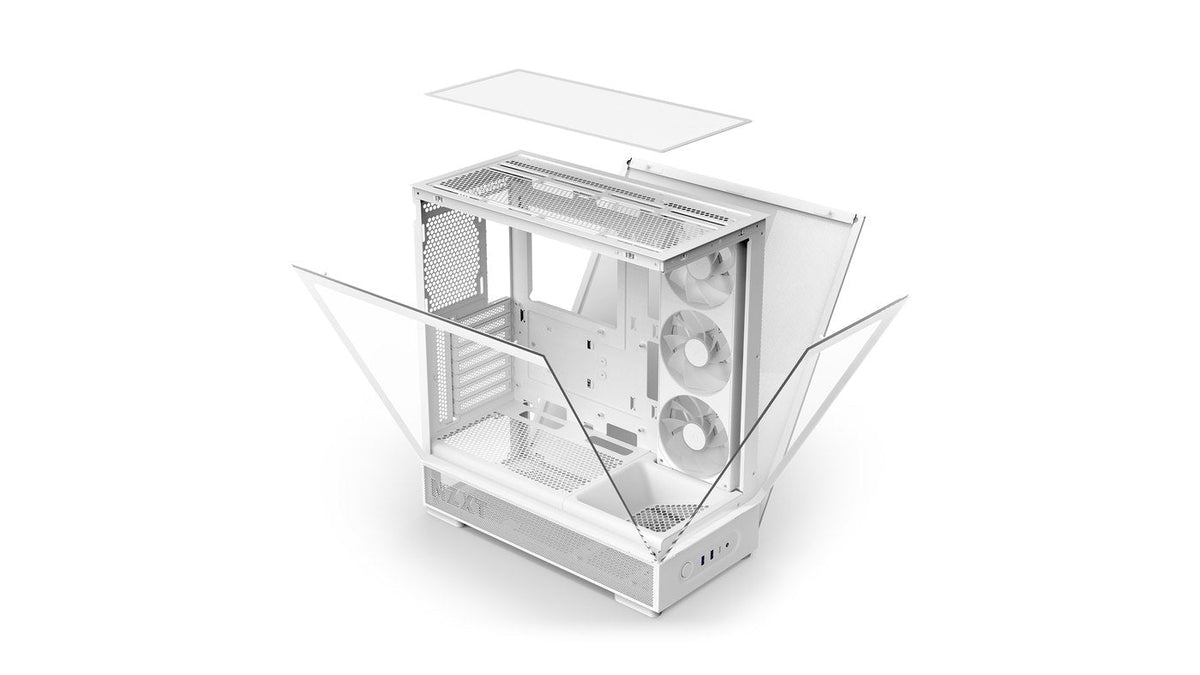
- Take off the large glass side panel. Some cases have a locking screw to loosen first.
- Remove every foam block, expanding foam packet and piece of cardboard inside.
- Peel any protective film off the inside of the glass panels.
- Put the side panel back on.
Some cases, like the H9 Elite, also have a foam block under the top glass panel. Lift the panel using the cutout at the back, remove the foam and press the panel firmly back down.
Step 3: Give it room to breathe
Leave at least six inches (about 15 cm) between the PC and any wall or surface so it can pull in fresh air. Never put it inside a closed cabinet. Trapped heat can damage it.
On the floor? Keep it off carpet, which blocks airflow underneath. A PC riser or a flat board under it does the job. Your PC looks better on the desk anyway.
Step 4: Plug everything in
- Monitor: plug your DisplayPort or HDMI cable into the graphics card's ports, usually below the audio jacks. The motherboard's video ports give you reduced performance or no picture at all.
- Wi-Fi antennas: screw them onto the antenna points on the back of the PC. They handle Bluetooth too, so skip them and both will be weak or missing.
- Keyboard, mouse and USB devices: into the USB ports on the back panel. Plug in an Ethernet cable here if you're going wired.
- Power: connect the AC cable to the power supply, plug it into your surge protector or UPS and set the PSU switch to on (I).

Step 5: First boot
Press the power button on the top or front of the case. The very first start can take a few minutes before Windows shows you account setup, so give it time. Then follow Windows' setup screens.
Step 6: Update everything
Your PC was built with the drivers of its day. Updates since then fix bugs, close security holes and often add game-specific performance improvements, so this step is worth doing before you install a single game.
| Update | Where to get it |
|---|---|
| Windows | Settings, then Windows Update. Check Optional updates too, which can include drivers |
| Graphics driver | NVIDIA App, AMD Software: Adrenalin Edition or Intel Graphics Software |
| Motherboard drivers | Your motherboard maker's support page or its app (ASUS Armoury Crate, MSI Center, Gigabyte Control Center) |
| BIOS | Your motherboard maker's support page |
| SSD firmware | The drive maker's app, like Samsung Magician or SanDisk Dashboard |
Skip third-party "driver updater" apps. They can install outdated drivers and some carry malware. For the BIOS, follow our guide to updating your motherboard BIOS.
Step 7: Check your RAM speed
Open Task Manager, go to Performance and click Memory. The Speed figure should match your RAM's rated speed. If it's noticeably lower, the RAM's XMP or EXPO profile isn't switched on. Our guide to enabling XMP or EXPO fixes that in a couple of minutes.
Step 8: Set up your lighting and cooling
Which app controls your lights depends on what's inside:
- NZXT CAM runs CAM-powered hardware: Kraken Elite and Kraken Plus coolers, the Control Hub and the RGB & Fan Controller. Get it from the NZXT CAM page.
- Your motherboard's RGB app runs whatever is on the motherboard's own RGB headers, like case fans and a Kraken Core. It usually runs your RAM lighting too. That's Armoury Crate on ASUS boards, Gigabyte Control Center on Gigabyte, MSI Center on MSI and Polychrome Sync on ASRock. On an NZXT N-Series motherboard, CAM runs those headers. Graphics card lighting may need the card maker's own app.
While you're in CAM, set your fan curves too. Our guide to fan curves in NZXT CAM shows how to keep it quiet at idle.
Frequently asked questions
Do I really need to keep the box?
For an NZXT prebuilt PC, yes. Warranty repairs ship in the original box and foam. Replacements cost extra. NZXT prebuilt PCs carry a 2-year limited parts and labor warranty, so keep it at least that long.
Why do I need a surge protector?
A sudden power surge can damage your PC's components. That kind of damage isn't covered by most warranties. A UPS with automatic voltage regulation goes further: it smooths out dips and keeps the PC running through a short blackout so you can save and shut down.
My monitor shows nothing on first boot. What's wrong?
Check it's plugged into the graphics card rather than the motherboard. Then check the monitor is set to the right input. Still nothing? Our guide to a PC that powers on with no display walks through the rest.
My Wi-Fi is weak or missing.
Make sure both antennas are screwed on. Without them Wi-Fi and Bluetooth are weak or missing entirely. If they're on and it's still not working, see our guide to fixing PC Wi-Fi.
Does CAM control all my RGB?
Only CAM-powered hardware, which includes the RGB headers on NZXT N-Series motherboards. Plenty of prebuilt PCs run some or all of their lighting from the motherboard instead, so you may need your motherboard's app as well. Our guide to whether you need NZXT CAM running explains which parts use which.
Now go play
That's it. Your PC is set up, up to date and running the way it should. If anything on this list doesn't go to plan with an NZXT prebuilt, NZXT Support is there to help.