登入
登入
NZXT CAM Not Detecting Your Kraken or RGB Controller? How to Fix It

Short answer: Start by checking the device is CAM-powered at all, because the Kraken Core and Kraken 120 never show up in CAM. If it is, open Device Manager. Missing there means a connection problem, usually the internal USB 2.0 cable. Listed in Windows but missing from CAM points to Fast Startup, a conflicting program or a damaged CAM install.
When CAM can't see your Kraken or RGB controller, you lose custom lighting, screen modes and fan curves all at once. Work down these steps in order. Each one narrows the problem down for the next.
Step 1: Is your device CAM-powered?
Not everything NZXT makes talks to CAM directly. Some products only show up through a controller. If yours is in the "No" rows below, CAM was never going to list it. Nothing is broken.
| Product | Shows up in CAM? |
|---|---|
| Kraken Elite, Kraken Plus, Kraken (2023) | Yes, over its internal USB connection |
| Kraken Core | No. It runs from your motherboard's fan headers with no USB connection |
| Kraken 120 | No. Its RGB can run through an NZXT RGB controller, which shows up instead |
| H9 Flow RGB+, H6 RGB+ | Yes, through the built-in Control Hub or Control Hub Lite |
| H9 Flow, H7 Flow, H6 Flow, H5 Flow, H3 Flow | No |
| Control Hub, RGB & Fan Controller | Yes |
| Single RGB fans such as the F120 RGB Core | Only through an NZXT RGB controller |
Not sure you even need CAM? Our guide to whether NZXT CAM needs to be running goes product by product.
Step 2: Can Windows see it?
This check splits the problem in half. If Windows can't see the device, no app can. If Windows can, the hardware side is fine and you're looking at software.
Right-click the Start button and choose Device Manager. Under View, pick Devices by container so NZXT hardware is easy to spot. Look for entries like NZXT Kraken Elite V2, NZXT Control Hub or NZXT RGB Controller.
Then switch the view to Devices by type and expand Universal Serial Bus controllers. An entry reading Unknown USB Device (Device Descriptor Request Failed) means something is plugged in but isn't identifying itself to Windows. That's a power state problem, so go to Step 3.
No NZXT entry and no unknown device at all? Skip to Step 4. Listed normally but still missing from CAM? Jump to Step 5.
Step 3: Power cycle the device
A device stuck in a bad power state needs every bit of leftover power drained before it resets. A normal restart won't do it.
- In Device Manager, right-click the unknown device and choose Uninstall device.
- Shut down from Windows, then unplug the PC from the wall.
- Hold the power button for 30 seconds to drain residual power.
- Leave it unplugged for another 5 minutes.
- Plug it back in and start the PC as normal.
- If nothing appears, right-click your computer's name at the top of Device Manager and choose Scan for hardware changes.
Still erroring or still no device? Time to look inside the case.
Step 4: Check the internal USB 2.0 connection
Most CAM-powered hardware connects to a 9-pin internal USB 2.0 header, usually found along the bottom edge of the motherboard. Shut down and unplug before you open the case.
Connect it straight to the motherboard
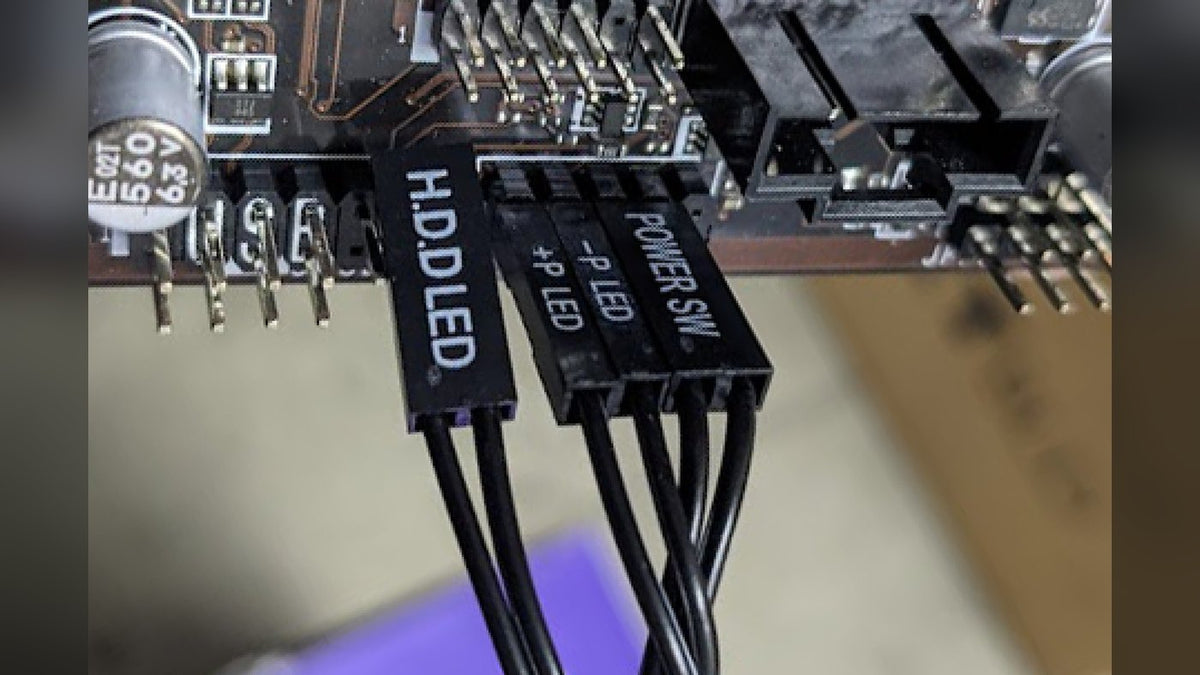
Hubs, splitters and adapters are a common cause of detection problems, so take them all out while you troubleshoot, including any that came in the box. Afterwards, the splitter included with your device or a powered hub like the NZXT Internal USB Hub can go back in. Generic header splitters like the one below are known to cause problems, so leave those out for good.

Check the plug is lined up
On boards with bare header pins and no plastic shroud, it's easy to push the plug on one pin out of line. Pull it off and reseat it squarely.
Try the other header
Most ATX and Micro-ATX boards have at least two USB 2.0 headers. Move the device to the other one. If it detects there, the first header was the problem. If it detects on neither, the cable or the device is at fault.
Older devices with a removable USB cable, like the Kraken X3, Kraken Z3 and HUE 2, give you one more test: plug that cable into a rear USB port or a laptop. Current Kraken coolers have a built-in cable.
Seeing "USB Device Over Current Status Detected" at boot too? Our guide to front I/O problems shows how to find the USB device causing it.
Step 5: Turn off Fast Startup
Fast Startup saves part of Windows to your drive at shutdown for a quicker boot. On a desktop it can stop RGB controllers and monitoring sensors initializing properly, which is exactly what CAM relies on. NZXT recommends turning it off with any CAM-powered hardware. Booting from an SSD, you'll barely notice the difference.
- Press Win + R, type powercfg.cpl and press Enter.
- Click Choose what the power button does on the left.
- If the shutdown options are grayed out, click Change settings that are currently unavailable.
- Untick Turn on fast startup (recommended) and click Save changes.
Then do a cold boot so the change sticks: shut down, switch off the power supply at the back of the PC, wait 30 seconds, switch it back on and start up.
Step 6: Rule out a software conflict
CAM needs exclusive access to the hardware it controls. If another program grabs the device, such as a second RGB app or a monitoring tool reading a fan sensor, CAM loses its connection. A "Communication to the device has failed" message is the usual sign.
Close or uninstall other RGB and monitoring software and see if the device comes back. To find the exact culprit, copy the device's Physical Device Object name from its Properties (Details tab) in Device Manager. Search for it with Find Handle or DLL in Microsoft's free Process Explorer. Anything listed besides NZXT CAM is the conflict.
Outdated chipset drivers and BIOS cause disconnects too. Grab the latest chipset driver from your motherboard maker or from AMD or Intel. For the BIOS, see our guide to updating your motherboard BIOS.
Step 7: Do a clean reinstall of CAM
If Windows sees the device and nothing is fighting CAM for it, a damaged install or settings file is the last suspect.
- Open Settings, go to Apps, then Installed apps. Find NZXT CAM in the list. Sorting by Name (A to Z) makes it quicker.
- Click the three dots next to it and choose Uninstall.
- Type %AppData% into the Start menu search and rename or delete the NZXT CAM folder. The uninstaller leaves your settings behind, so this is what makes it a clean reinstall. Renaming lets you restore your profiles later.
- Restart, then download the latest version from the NZXT CAM page and install it.
Frequently asked questions
Will my Kraken keep cooling while CAM can't see it?
Yes. A CAM-enabled Kraken runs in default mode without CAM, with fixed pump and fan speeds and a default screen. You get custom curves, lighting and display modes back as soon as CAM reconnects. More detail in do you need NZXT CAM running.
My motherboard only has one USB 2.0 header. Can I still run several NZXT devices?
Yes, with a powered hub like the NZXT Internal USB Hub. A board with no internal USB 2.0 header at all isn't directly compatible with CAM-powered devices, so check the manual before you assume it's missing.
My older Kraken X shows up as an Unknown Device.
Kraken X1, X2 and X3 series coolers sometimes need their chipset driver installed by hand. Download it from the NZXT Support article on CAM detection, extract it, right-click the AseUSB.inf file, choose Install and restart.
CAM won't install. What's wrong?
Usually one of three things. The installer needs an internet connection, so check your network and turn off any VPN while it runs. CAM doesn't support Windows 8.1 or older, so update Windows first. And if an earlier copy is still running, close every NZXT CAM.exe and cam_helper.exe process in Task Manager, then try again. Installed fine but won't open? See our guide to fixing NZXT CAM when it won't open.
Does the Kraken Core work with CAM?
No. That's by design: the Kraken Core needs no USB connection or controller. It plugs into your motherboard's fan headers and you set it up in BIOS. Our guide to which header to use for your AIO pump covers the setup.
Still not showing up?
If Windows can't see the device on any header after all of this, the device itself may be faulty. Contact NZXT Support with your shipping address, proof of purchase and the device's serial number so the team can check your warranty and set up a replacement if it's covered.