Connexion
How to Add Storage to Your PC: M.2, SATA and External

Short answer: M.2 SSDs mount straight to the motherboard, need a standoff in place first, and sit at a diagonal angle until you screw them down. SATA drives (2.5" and 3.5") mount in the case and need two cables: SATA data to the motherboard, SATA power from the PSU. External drives just plug into USB. Check the BIOS afterwards to confirm the drive is detected.
Adding storage is the easiest upgrade there is, and the one most likely to be needed on short notice when a game update balloons past what you have free.
Before you start: NZXT prebuilt PCs ship with a 2-year limited warranty that does not cover issues caused by adding or changing components. If yours is still covered, it is worth waiting.
M.2 SSDs
M.2 has become the default for good reason: compact, fast, high capacity, and it takes no cable routing at all.
Nearly everything you will buy is M.2 2280, meaning 22mm wide by 80mm long. Other sizes exist but are uncommon on desktops.
Installing an M.2 drive
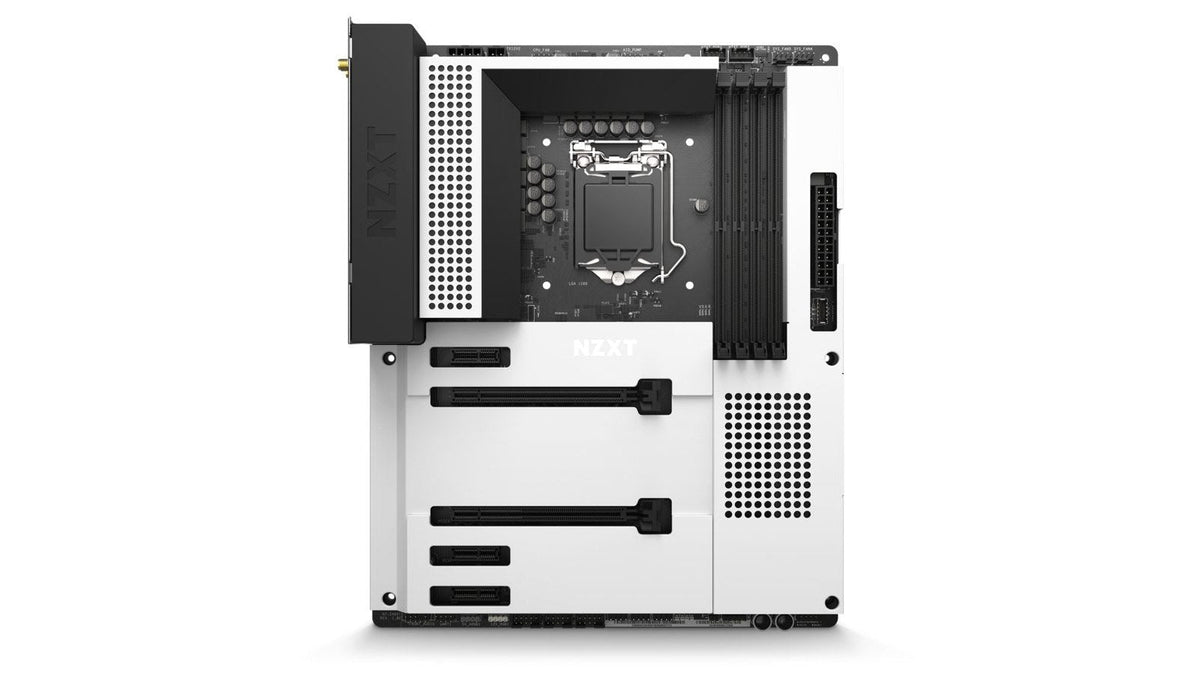
M.2 slots sit on the motherboard, usually near the PCIe slots. Some are under a protective plate or an integrated heatsink. Your motherboard manual has the exact positions, and it is worth checking, because some boards put a slot underneath the graphics card.
- Check the standoff is installed at the right position. Most boards ship with it at the 2280 position. If the slot has no standoff, look in the motherboard accessories bag for the standoffs and mounting screws.
- Insert the drive into the slot. Seated correctly, it sits at a diagonal angle to the board. That is normal, not a mistake.
- Gently press the drive down so its far edge rests on the standoff, then secure it with the screw.
Heatsinks
If your motherboard has an M.2 heatsink, peel the protective film off the thermal pad so it makes contact. The pad usually presses against the SSD's label sticker, which is fine - most are made from thermally conductive material.
If your SSD has its own built-in heatsink, use that one rather than the motherboard's. And do not remove a heatsink that is bonded to the drive, as that can warp or damage it.
Carrier cards
Some motherboards include a carrier card for additional M.2 drives, connecting through a PCIe slot or a dedicated one. Check your manual.
2.5" and 3.5" SATA drives
Older form factor, still very useful. These mount in the case rather than on the motherboard.
3.5" hard drives remain the way to get a lot of capacity for less money than an equivalent SSD. The trade-off is speed, since they are mechanical. Good for archives and recordings, not for your OS or games you load constantly.
Check your case specification for drive trays or mounts before buying. As an example, the H5 Flow has an adjustable drive cage in the lower chamber holding two 2.5" drives plus either one more 2.5" or a full-size 3.5".
Installing a SATA drive
Every SATA drive needs two connections:
- SATA data - the smaller connector, running from the drive to a SATA port on the motherboard. The cable comes with your motherboard. The ports are usually along the right edge near the bottom-right corner, identifiable by their L-shaped connector.
- SATA power - the larger connector, running from the power supply. On a modular PSU this is one of the modular cables; on a non-modular one it is attached. These cables usually carry 3 to 5 connectors, so one cable can feed several drives.
- Mount the drive in the case first, following your case manual.
- Connect SATA data from the drive to the motherboard.
- Connect SATA power from the PSU to the drive.
- Start the PC and check the BIOS to confirm detection.
External storage
The easiest option by a distance. Plug it into a USB port and it works. This covers dedicated external drives as well as docks and enclosures that take internal drives.
Good for archives, backups and moving files between machines. Not ideal for games you play regularly, since USB is slower than a direct connection.
Which type should you choose?
| Type | Best for | Needs |
|---|---|---|
| M.2 SSD | OS, games, video scratch drive | A free M.2 slot and a standoff |
| 2.5" SSD | Extra fast storage when M.2 slots are used up | A case mount, SATA data and power |
| 3.5" HDD | Large archives, recordings, backups | A 3.5" case mount, SATA data and power |
| External | Backups, portability | A USB port |
After installing
Start the PC and check the BIOS to confirm the drive is detected before booting into Windows. If the BIOS cannot see it, Windows will not either, and you have narrowed the problem to the physical install.
A new drive also needs initialising and formatting in Windows Disk Management before it appears in File Explorer. A drive that is detected in BIOS but missing in Explorer is almost always just uninitialised, not faulty.
Frequently asked questions
My M.2 drive sits at an angle. Is that wrong?
No, that is exactly right. It sits diagonally until you press it down onto the standoff and secure it with the screw.
My new drive is not showing up in Windows.
Check the BIOS first. If the BIOS sees it, the drive needs initialising and formatting in Disk Management. If the BIOS does not see it, reseat it and confirm the standoff and screw are correct, and for SATA drives check both cables.
Should I use the motherboard heatsink or the one on my SSD?
Use the drive's own heatsink if it has one. Do not remove a heatsink bonded to the SSD, as that risks damaging the drive.
Do I need a standoff for an M.2 drive?
Yes. Without it the drive has nothing to sit on and cannot be secured. Most boards ship with one pre-installed at the 2280 position; if not, check the accessories bag.
How many SATA drives can I connect?
As many as your motherboard has SATA ports and your case has mounts, provided your PSU has enough SATA power connectors. A single SATA power cable usually carries 3 to 5.
Is a 3.5" hard drive still worth buying?
For bulk storage, yes. Capacity per pound is much better than SSDs. Just do not run your OS or frequently loaded games from one.
Need a hand?
Tell us your case and motherboard and we will confirm what will fit and where. Our team is at NZXT Support.